Running coding models on your own machine
What "fits your hardware" means, what the quantization labels say, and how to install and switch local models in Catalase.
What "fits your hardware" means
A model runs from memory. Before you install one, check that its file, plus the working memory it needs, fits in the memory the model will run in. Four things decide that.
- System RAM. A model that runs on the CPU is held in system RAM. Your operating system, your editor, your browser and the terminal use RAM too, so leave headroom above the model's size.
- GPU memory (VRAM). A model that runs on a dedicated GPU is held in the GPU's memory. Generation is usually much faster on a GPU, but the memory ceiling is lower. Some runtimes can split a model between GPU memory and system RAM. The part that runs on the CPU is slower.
- Model size. The model's file size is the floor for memory use. A larger file needs more memory, whichever memory it lands in.
- Quantization. The same model is published at several quantization levels, each a different file size. A smaller level needs less memory. The next section explains the levels.
Context memory is separate from file size. As a conversation grows, the model keeps more of it in memory, and that takes room on top of the file. Catalase's context meter in the chat panel shows how full the conversation is, so you know when to start a new one.
The Marketplace shows whether each model will run well on your hardware. Catalase detects your RAM and GPU for that check. The check is a guide. If a model is close to the limit, test it on a real project before you rely on it.
Quantization in plain words
A model is a very large set of numbers. Quantization stores those numbers with fewer bits each. Fewer bits mean a smaller file, which needs less memory to load, at some cost in output quality. How much quality is lost depends on the model and the task, so try the level you pick on your own code.
The label carries the level. The number after Q is roughly the bit width. The K marks a newer quantization method. S, M or L mark size variants within it. Catalase shows the quantization on each Marketplace row, so you can tell apart rows that share a model name.
| Level | File and memory | Trade-off |
|---|---|---|
| Q8_0 | 8-bit. Larger file, more memory. | Closer to the unquantized model's output. Needs more room. |
| Q4_K_M | 4-bit family, medium variant. Smaller file, less memory. | Lower memory need, with some quality cost. A common starting point. |
If you have no reason to pick another level, Q4_K_M is a common place to start. If it fits with room to spare and you want output closer to the full model, try a higher level that still fits.
Model picks by hardware tier
The Marketplace surfaces models that fit your hardware. Open it, tick Show only models that fit my system, and the rows that remain are ones Catalase has detected will run on your machine. The default, qwen2.5-coder:1.5b, runs on a laptop without a GPU. For a machine with more RAM or a dedicated GPU, the Marketplace shows larger options alongside an estimated fit level.
Install a local model in Catalase
- Install Ollama. Get it from ollama.com. Catalase looks for Ollama on the Welcome screen. If it is missing, install it and click Re-check.
- Open the Marketplace. It is in the toolbar. Tick Show only models that fit my system to hide the rows that will not run well on your hardware. Each row shows the model's size, whether it fits, and an Install or Delete button.
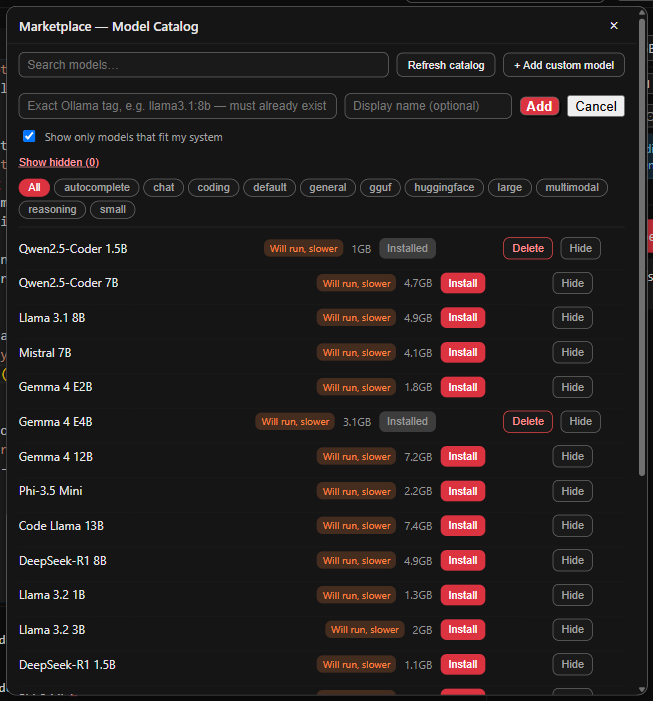
- Install a row. If you already know the model's name, you can pull it by name instead in Settings → Local Models (Ollama). Catalase lists what you already have there.
- Refresh the catalogue when you want new entries. Click Refresh catalog. The catalogue also refreshes itself in the background every 24 hours. Catalase finds GGUF models on Hugging Face alongside its curated list, and removes duplicates.
- Read the badges. Each row shows who published it and its quantization. Catalase also marks entries it found automatically with a source badge. Example publishers in the catalogue are
unsloth,lmstudio-community,ggml-organdbyteshape. When rows share a model name, the publisher and quantization tell them apart.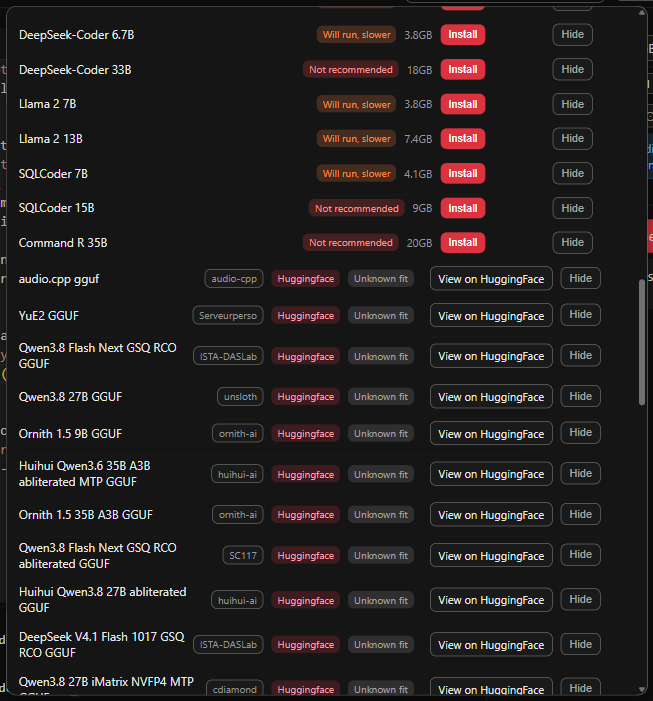
- Remove a model. Installed models have a Delete button. Catalase asks first. Dismissing the confirmation removes nothing.
How fast inline suggestions are expected to be
Inline suggestions are the grey ghost text a local model can write as you type. Turn them on in Settings → Editor → Inline suggestions. Then Tab accepts a suggestion, Esc dismisses it, and Alt+] shows the next one. Speed depends on your hardware. The user guide gives these expected ranges.
| Hardware | Expected time to a suggestion |
|---|---|
| Dedicated GPU | Roughly 50–200 ms |
| CPU only | Roughly 0.5–3 s. A smaller model is recommended. |
These ranges are the expected figures from the user guide. Performance on a specific machine will vary.
When a local model is not enough
You do not have to pick one model for everything. In Settings → Model routing, you can set a model for each of five tasks: Chat, Commit messages, PR title, body and changelog, Explain diff and Code review. Leave any task on Use default to keep the local model. A common split is a small local model for commit messages and a stronger cloud model for code review.
To switch in chat, type /model sonnet. /model on its own lists every model you can use now. An ambiguous name lists the candidates instead of guessing. The picker's top section shows local models, installed subscription CLIs and providers with a saved key. Anything that needs setup is collapsed below and greyed out.
If a message fails, Catalase can retry it with the next available model.
Large models with llama.cpp (advanced)
For models that do not run well through Ollama, Catalase has a llama.cpp option. Open Settings → Local inference backend. Catalase shows your RAM and GPU, recommends Ollama or llama.cpp, and suggests a quantization level.
- Install Python, then run
pip install llama-cpp-python. Or click Install llama-cpp-python, which runs the install against the Python you choose and shows live progress. - Pick that Python from the suggested list, or enter its path. Save it, and Catalase checks that it works.
Limit: llama.cpp can be installed, but chat still routes through Ollama. Use Ollama for chat today.
Known limits for local models
- Real model installs from the Marketplace have not been verified end to end. Routed calls with paid API keys have not been verified either. See known limits.
- The llama.cpp install flow has not been verified with a live
pip installof llama-cpp-python. - There is no cancel for an Ollama model pull. Let it finish or fail.
- Inline suggestion speed varies by hardware. The ranges in the table above are expected figures.
- Catalase is available for Windows and Linux. macOS is not available yet.